People who write blogs will eventually face a very real problem: articles written in Chinese are perfectly fine, but overseas readers can't understand them. If you want an English version, human translation is too tedious. If you use a third-party translation API, you worry about the bill skyrocketing all of a sudden.
This is why many Typecho users tinker with article translation plugins. Take my SmartTranslate plugin, for example—the concept is quite elegant: translate the article in the backend, store the translation in a field, and let frontend readers switch to English when needed or view the original Chinese. There's no need for real-time translation on every page load, and the API Key is never exposed on the frontend, making the experience much more stable.
The problem lies on the other end: which translation API should you use?
OpenAI is certainly usable, but for many personal sites, tech blogs, and lightweight projects, there's no need to throw your budget at it right away. Cloudflare Workers AI is quite appealing in this case—it offers free quotas and supports an OpenAI-compatible calling method. For plugins already adapted to the OpenAI interface, the required changes are often not as big as you might think.
This article won't beat around the bush. It will directly explain three things:
- Get your Account ID from the Cloudflare dashboard;
- Create an API Token usable with Workers AI;
- Test a free AI model from Cloudflare using the OpenAI-compatible format, and select a model more suitable for translation scenarios.
Why Start from the "Translation" Scenario
Translation is especially suitable for testing large model interfaces.
The reason is simple: you can tell if the result is good or bad with your own eyes. Throw a Chinese technical description into the model, and the model gives you English. Whether it's fluent, whether the terminology is accurate, and whether it adds any extra meaning—you can judge it at a glance.
For example, Typecho plugin introductions, theme descriptions, deployment tutorials, and open-source project documentation—these are the types of content most vulnerable to machine translation that looks like a broken instruction manual. The sentences might be correct, but the tone is off, and readers will leave after reading two paragraphs.
Therefore, for translating such articles, I recommend using an OpenAI-compatible large language model for processing, rather than an interface that can only translate sentence by sentence mechanically. Large models understand context; they know how to express terms like "plugin backend," "custom fields," and "frontend switching" in technical articles.
That's where the appeal of Cloudflare Workers AI lies: it doesn't just give you a translation API; it provides a batch of large models. You can use it for translation, and also for summarization, title generation, SEO descriptions, and tag generation. For a blog plugin, one set of interfaces can handle quite a lot.
What You Need to Prepare
Don't prepare too much—really just these few items:
| Name | What It's For | Where to Get It |
|---|---|---|
| Cloudflare Account | To access the dashboard and enable Workers AI | Register on the Cloudflare website |
| Account ID | To construct the API URL | Workers AI REST API page |
| API Token | For authentication when calling the API | Create it with one click on the Workers AI page |
| Model ID | To tell Cloudflare which model to invoke | Workers AI Models documentation |
| OpenAI-compatible Base URL | To fill in the API URL for plugins or code | https://api.cloudflare.com/client/v4/accounts/{ACCOUNT_ID}/ai/v1 |
Note: Cloudflare uses an API Token here, not your account password or the global API Key. Do not fill your Cloudflare account password into the plugin – that would be too dangerous.
Get Your Account ID from the Cloudflare Dashboard
Open the Cloudflare dashboard, log in, and find Workers & Pages in the left menu, then go to Workers AI.
The official Cloudflare REST API getting started page provides a straightforward process: go to the Workers AI page, click Use REST API, and this page will display your required Account ID together with the entry point for creating an API Token.
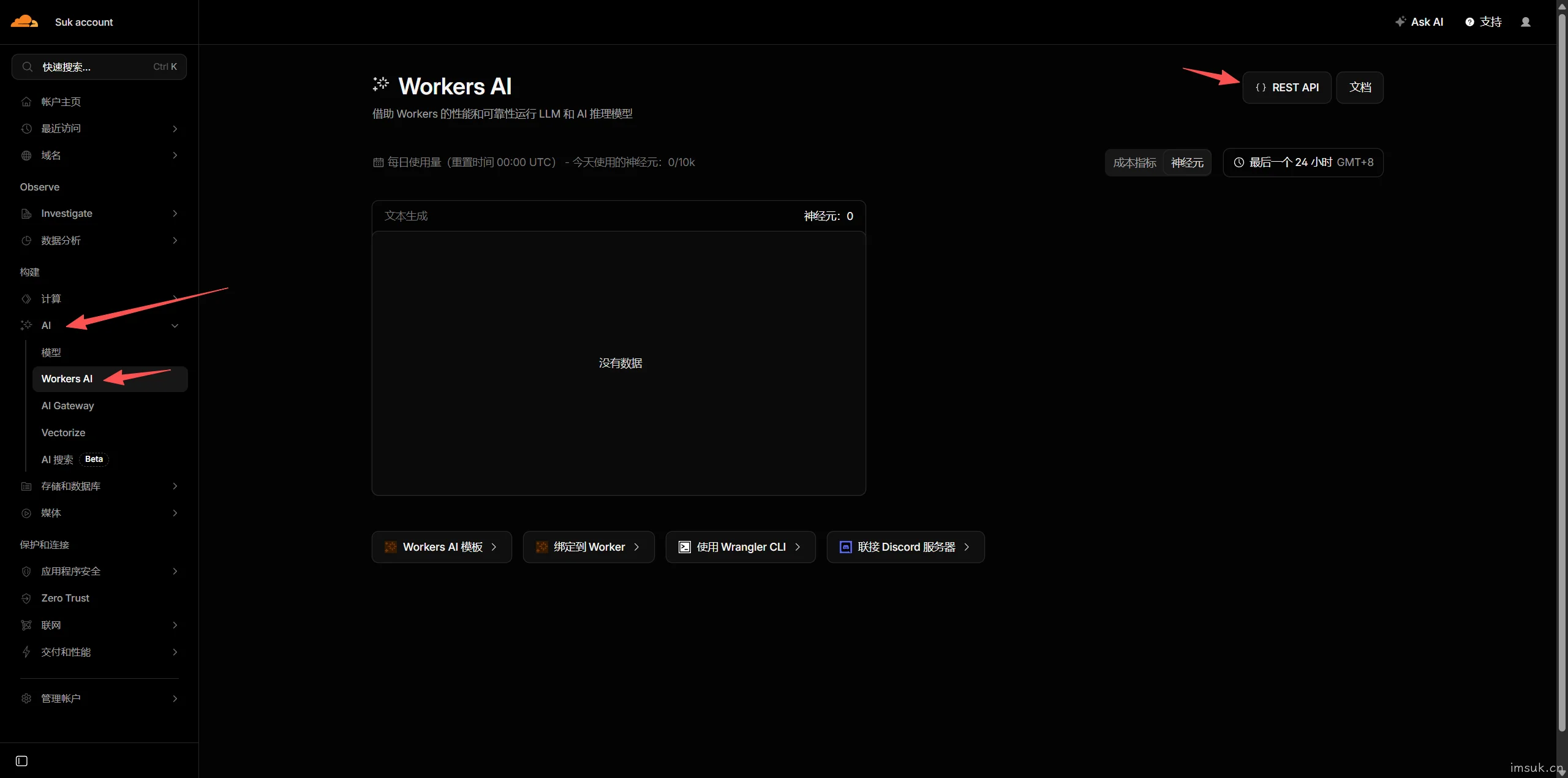
After entering Workers AI, locate REST API.
Click into it, and the page will show Get Account ID. Copy the Account ID from there and save it in a notepad for now.
It looks something like this:
ACCOUNT_ID=xxxxxxxxxxxxxxxxxxxxxxxxxxxxxxxxThis string is not a secret, but you should not share it publicly either.
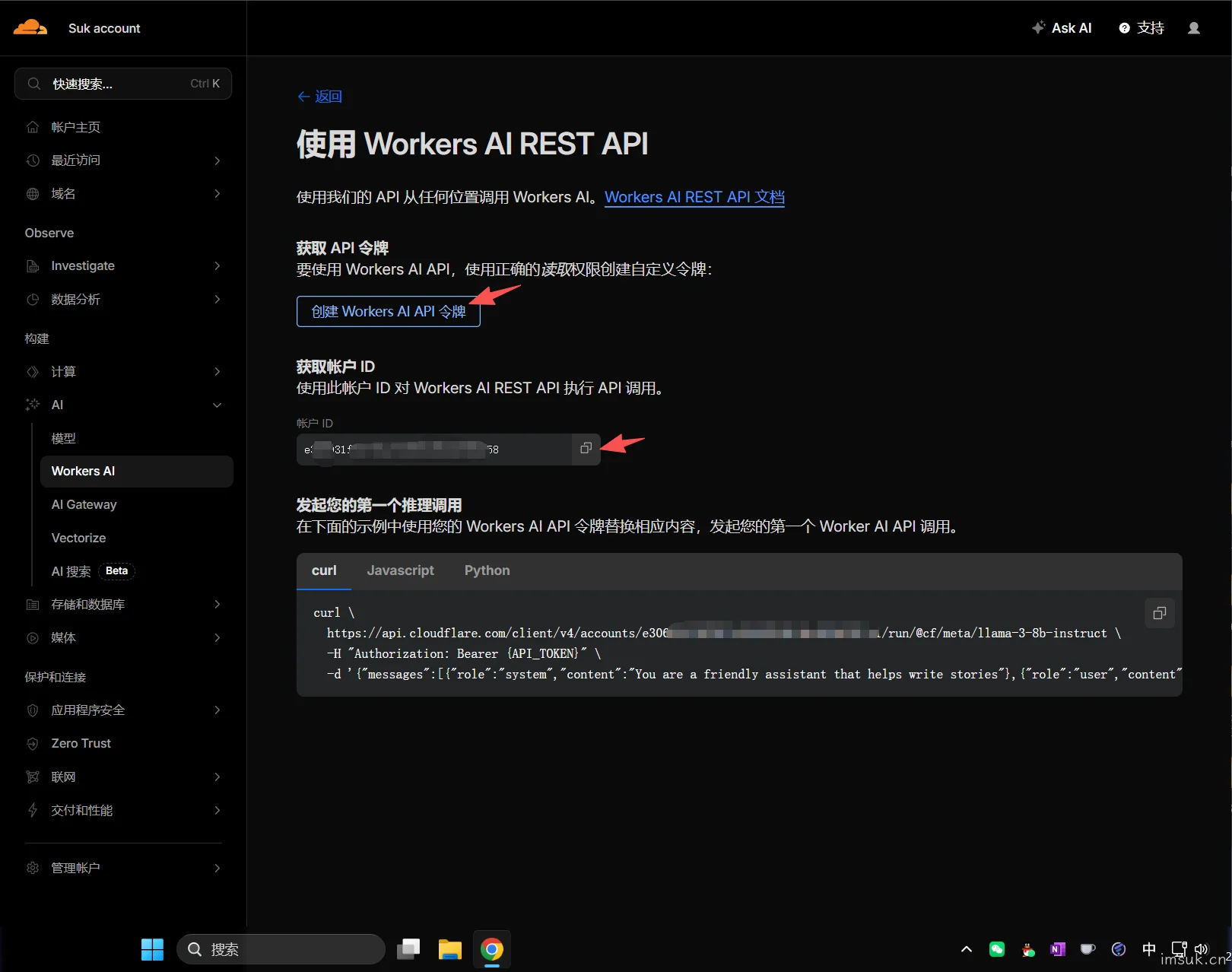
Create a Workers AI API Token
On the same REST API page, find Create Workers AI API Token.
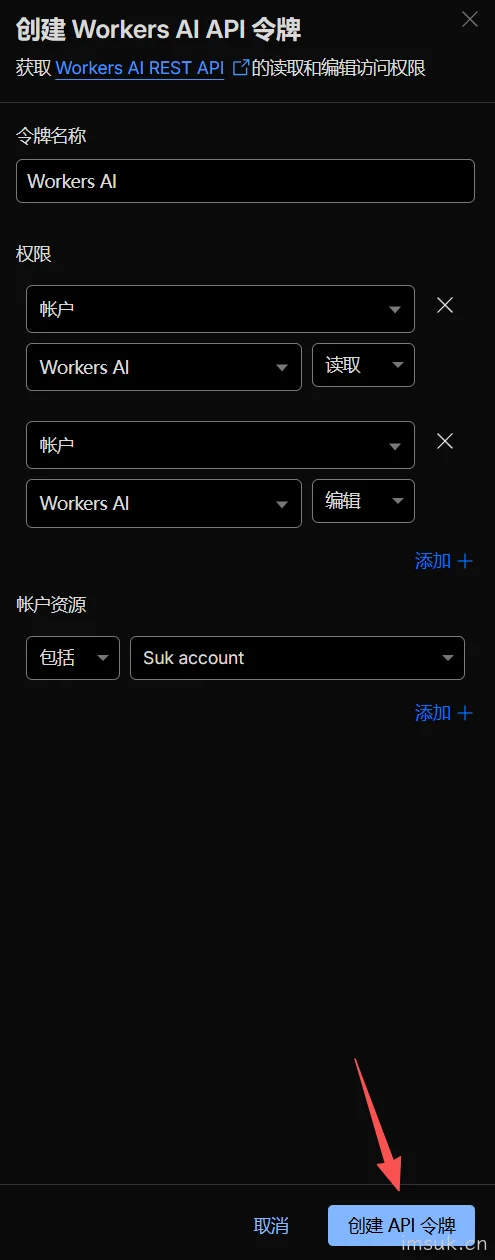
Clicking it will take you to a page where Cloudflare pre‑fills a set of permissions. Normally, using this template is sufficient.
The process is as follows:
- Click
Create Workers AI API Token; - After creation, copy and save it immediately.
API Tokens should only be stored server-side, in plugin backend configurations, or in environment variables. Do not write them into front-end JavaScript or commit them to public GitHub repositories.
Once created successfully, the page will display a token string. Copy it immediately and save it in the following format:
CLOUDFLARE_ACCOUNT_ID=yourAccountID
CLOUDFLARE_API_TOKEN=yourAPIToken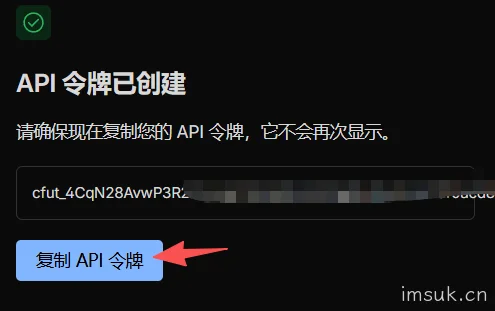
Test Your Account with the REST API First
After obtaining your Account ID and API Token, don’t rush to fill them into the Typecho plugin. First, test them with a terminal to make sure everything works.
Replace {ACCOUNT_ID} and {API_TOKEN} in the command below with your own.
curl https://api.cloudflare.com/client/v4/accounts/{ACCOUNT_ID}/ai/run/@cf/meta/llama-3.1-8b-instruct-fp8 \
  -X POST \
  -H "Authorization: Bearer {API_TOKEN}" \
  -H "Content-Type: application/json" \
  -d '{
    "messages": [
      {
        "role": "system",
        "content": "你是一个专业翻译助手,只输出英文译文,不解释。"
      },
      {
        "role": "user",
        "content": "请把这句话翻译成英文:这款 Typecho 插件可以在后台生成文章英文译文,并在前台切换显示。"
      }
    ]
  }'
If successful, you will see a response like this:
{
  "result": {
    "response": "This Typecho plugin can generate English translations of articles in the backend and switch between versions on the frontend."
  },
  "success": true,
  "errors": [],
  "messages": []
}
Here, focus on two things:
- Whether
successistrue; - Whether
result.responsecontains a proper translation.
Then test with OpenAI compatible format
Many plugins support the OpenAI interface. Instead of directly requesting /ai/run/model-name, they request this address:
/v1/chat/completionsCloudflare Workers AI supports OpenAI compatible endpoints, with text generation going through /v1/chat/completions, so you only need to replace OpenAI's Base URL with Cloudflare's address.
Cloudflare's OpenAI compatible Base URL is:
https://api.cloudflare.com/client/v4/accounts/{ACCOUNT_ID}/ai/v1Full test command is as follows:
curl --request POST \
  --url https://api.cloudflare.com/client/v4/accounts/{ACCOUNT_ID}/ai/v1/chat/completions \
  --header "Authorization: Bearer {API_TOKEN}" \
  --header "Content-Type: application/json" \
  --data '{
    "model": "@cf/meta/llama-3.1-8b-instruct-fp8",
    "messages": [
      {
        "role": "system",
        "content": "你是一个专业的中英翻译助手。请保留技术术语,不要添加解释,只输出英文译文。"
      },
      {
        "role": "user",
        "content": "Cloudflare Workers AI 可以通过 OpenAI 兼容格式调用,这样很多现成插件只需要改 Base URL 和模型名称。"
      }
    ],
    "temperature": 0.2,
    "max_tokens": 800
  }'
Upon success, the return structure will be more similar to OpenAI:
{
  "id": "chatcmpl-xxx",
  "object": "chat.completion",
  "choices": [
    {
      "index": 0,
      "message": {
        "role": "assistant",
        "content": "Cloudflare Workers AI can be called through an OpenAI-compatible format, so many existing plugins only need to change the Base URL and model name."
      },
      "finish_reason": "stop"
    }
  ]
}
Plugins generally read:
choices[0].message.contentAs long as this field contains the translation, the OpenAI-compatible interface is considered connected.
How to fill it in the Typecho translation plugin
Field names in different plugin backends may not be exactly the same, but the idea is similar. Just make sure to identify these items:
| Plugin Configuration Item | What to Fill |
|---|---|
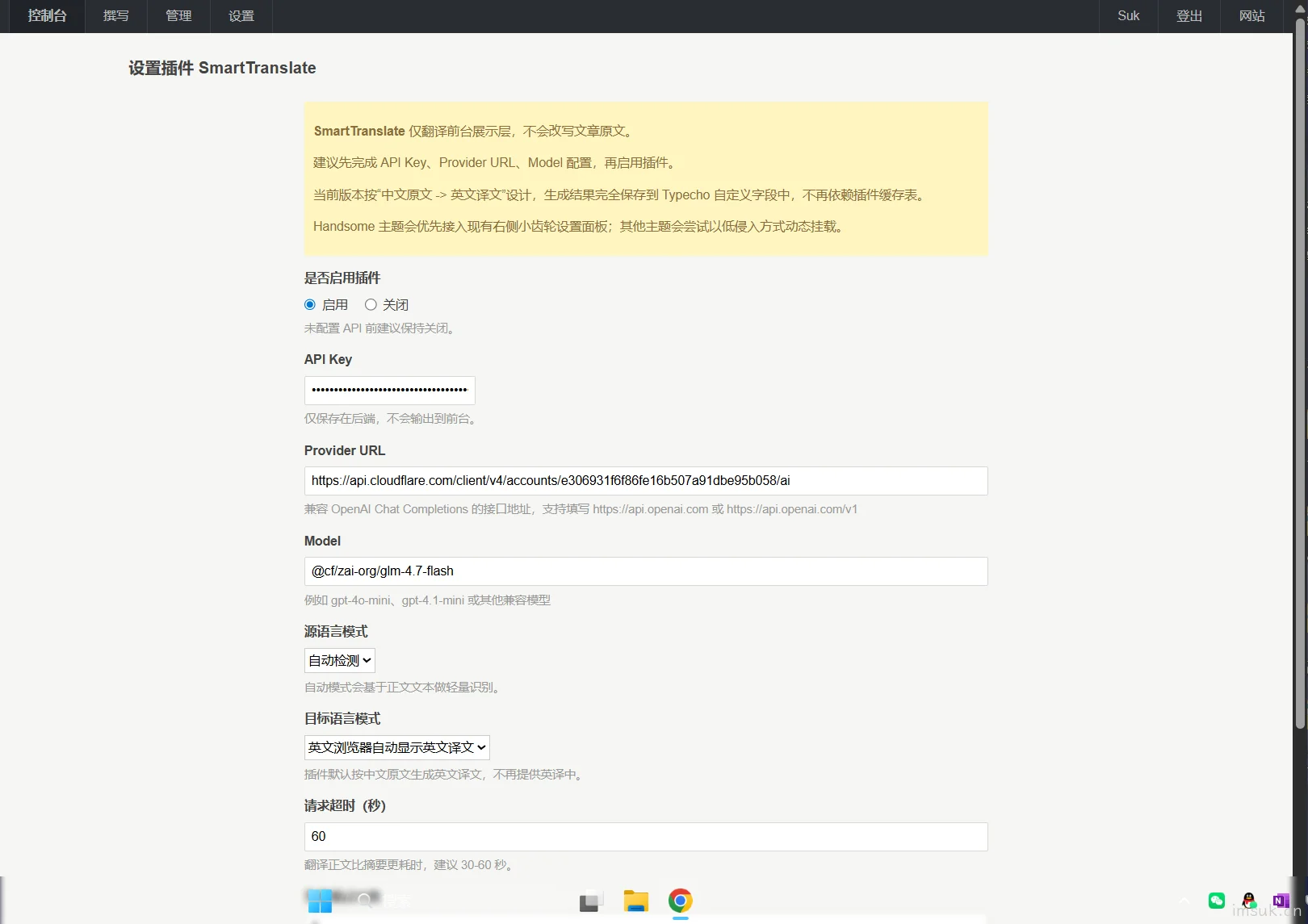
| API Address / Base URL | https://api.cloudflare.com/client/v4/accounts/{ACCOUNT_ID}/ai/v1 |
| API Key | Cloudflare API Token |
| Model Name / Model | @cf/zai-org/glm-4.7-flash |
| Interface Type | OpenAI / OpenAI Compatible / Chat Completions |
| Temperature | 0.6 |
| Maximum output (max_tokens) | Depending on article length, 800 for short articles, 2000+ for long articles |
Do not insert /chat/completions repeatedly.
Some plugins ask you to fill in Base URL, in which case fill in:
https://api.cloudflare.com/client/v4/accounts/{ACCOUNT_ID}/ai/v1Some plugins ask you to fill in the complete request address, then fill in:
https://api.cloudflare.com/client/v4/accounts/{ACCOUNT_ID}/ai/v1/chat/completionsThis part is easy to misconfigure. Incorrect filling usually results in issues like 404, interface not found, or parsing failure.
The image below is an example using my translation plugin
Recommended translation prompt
When translating articles, don't just give a single sentence like "translate into English". The output will be unstable; sometimes it will explain, sometimes it will add content, sometimes it will mess up code blocks.
You can use the following system prompt:
You are a professional Chinese-English technical article translation assistant.
Please translate the Chinese content provided by the user into natural, accurate English suitable for a technical blog.
Preserve Markdown formatting, code blocks, links, image tags, table structures, and proper nouns.
Do not add explanations, do not output the original text, do not summarize, only output the English translation.
If you encounter uncommon technical terms, keep the precise expression.
Which model offers the best value
This is the key point; don't choose the largest model right away.
Cloudflare Workers AI's model pricing varies by model. Based on the current official pricing table, a few common models are roughly as follows:
| Model | Suitable Scenarios |
|---|
@cf/zai-org/glm-4.7-flash@cf/meta/llama-3.1-8b-instruct-fp8@cf/meta/llama-3.1-8b-instruct@cf/meta/llama-3.1-8b-instruct-awq@cf/meta/m2m100-1.2bIf your goal is: directly using the OpenAI format in a Typecho plugin to call Cloudflare AI large models for article translation, I recommend choosing by default:
@cf/zai-org/glm-4.7-flashIts advantages are quite practical:
- Supports OpenAI compatible calls, making plugin adaptation easier;
- Price is much lower than the regular
kimi2.6; - Context window is more suitable for handling longer article paragraphs;
- When translating technical articles, it is more stable than smaller models, not prone to mistranslating terms.
If you only want to make a standalone "translation API" and do not require OpenAI compatible format, you can consider:
@cf/meta/m2m100-1.2bIt is a dedicated multilingual translation model, and the request parameters are as follows:
curl https://api.cloudflare.com/client/v4/accounts/{ACCOUNT_ID}/ai/run/@cf/meta/m2m100-1.2b \
  -X POST \
  -H "Authorization: Bearer {API_TOKEN}" \
  -H "Content-Type: application/json" \
  -d '{
    "text": "This Typecho plugin can generate English translations in the backend.",
    "source_lang": "english",
    "target_lang": "chinese"
  }'
It is more like a traditional translation interface, simple and direct. However, many OpenAI plugins do not send requests in the text/source_lang/target_lang format by default, so you either need to modify the plugin code or wrap a Worker in between to bridge the gap.
Is the free quota sufficient?
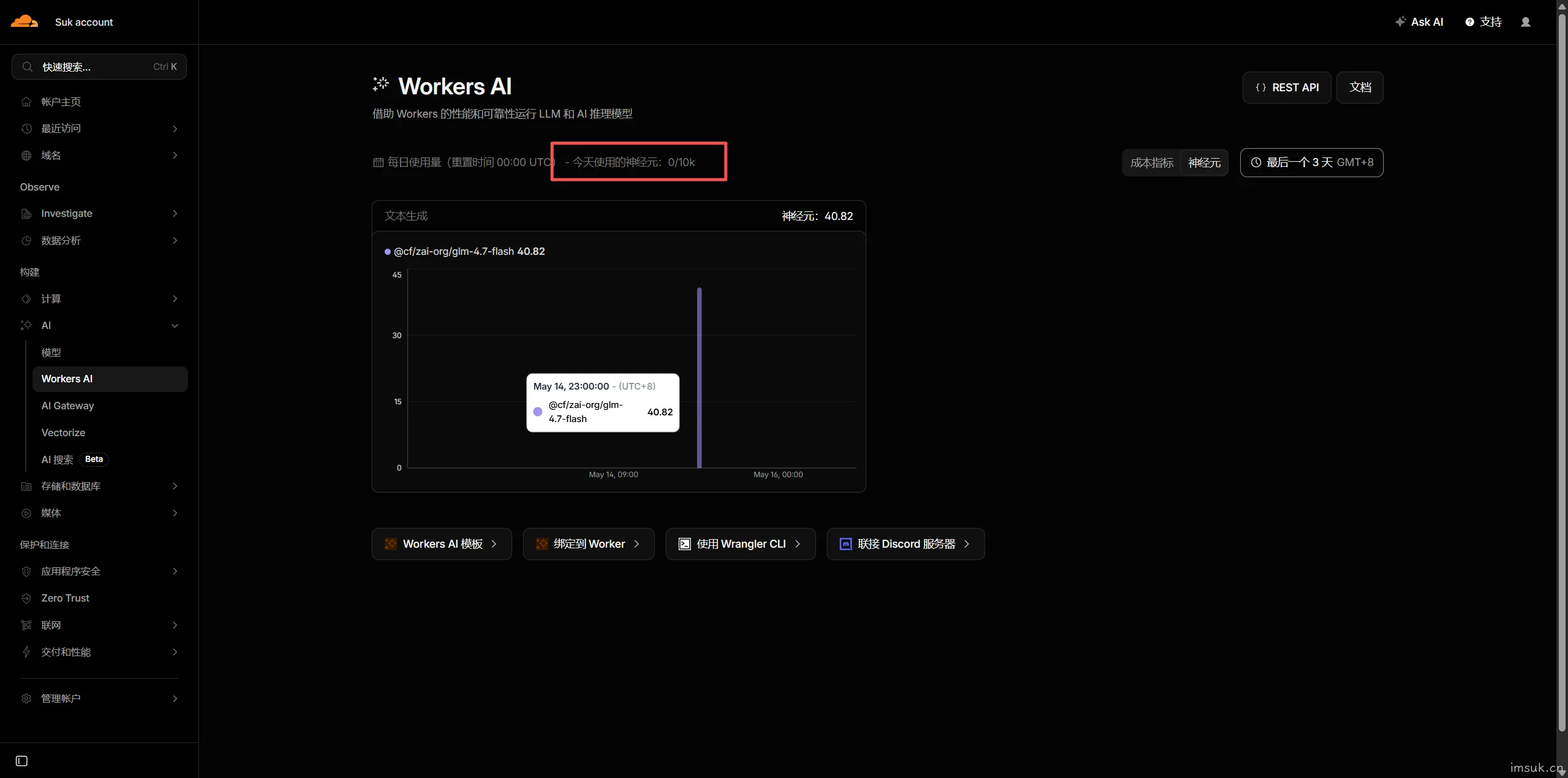
Cloudflare Workers AI free quota is calculated by neurons. The current official statement is a daily free quota of 10,000 neurons, beyond which you need a Workers paid plan.
Many people get confused when they see "neuron," but you can roughly think of it as a token.
Usage for blog translation is generally not that daunting. For example, if you're not translating hundreds of articles a day, but just clicking "Generate English Translation" after finishing a post, it's likely sufficient.
The real thing to watch out for is batch translation.
Suppose you have 500 old articles in your site. Generating them all at once will definitely hit your quota limit. A more stable approach is:
- Process only 10 to 20 at a time;
- Translate long articles paragraph by paragraph, retrying only the failed segment;
- Do not resend requests for articles that have already been translated;
How to Handle Common Errors
401 Unauthorized
Most likely, the API Token is wrong.
Check these points:
- Did you copy the entire Token?
- Is it preceded by
Bearerin theAuthorizationheader? - Did you accidentally add an extra space to the Token?
- Does the custom Token have Workers AI permissions?
Correct format:
Authorization: Bearer YOUR_API_TOKEN404 Not Found
Most likely, the address is wrong.
The OpenAI-compatible Base URL is:
https://api.cloudflare.com/client/v4/accounts/{ACCOUNT_ID}/ai/v1The complete chat completions URL is:
https://api.cloudflare.com/client/v4/accounts/{ACCOUNT_ID}/ai/v1/chat/completionsDon't leave {ACCOUNT_ID} as-is, and don't omit /accounts/.
Model Not Found
The model name must be complete, including the @cf/ prefix.
Correct:
@cf/meta/llama-3.1-8b-instruct-fp8Incorrect:
llama-3.1-8b-instruct-fp8Missing @cf/meta/, Cloudflare cannot find it.
Plugin Returns Blank
The API call might have succeeded, but the plugin didn't parse the fields correctly.
You need to confirm the plugin reads:
choices[0].message.contentIf the plugin was originally only compatible with certain response formats, you may need to check how the plugin code parses the response.
Pre-Publication Checks
Once configured, don't rush to publish. Run a test with a short article first.
It's recommended to check in this order:
- Are Chinese titles translated too awkwardly?
- Have code blocks been altered?
- Have any links been lost?
- Is the image Markdown preserved?
- Are terms like Typecho, Cloudflare, Workers AI, and API Token improperly translated?
- Does the page layout break when switching between Chinese and English on the front end?
The value of a translation feature isn't just "generate and be done with it," but to make the content truly readable for the audience. Especially for technical articles, garbled terminology and code will quickly erode credibility.
References
- Cloudflare Workers AI REST API Official Documentation: https://developers.cloudflare.com/workers-ai/get-started/rest-api/
- Cloudflare Workers AI OpenAI Compatibility Documentation: https://developers.cloudflare.com/workers-ai/configuration/open-ai-compatibility/
- Cloudflare Workers AI Pricing Documentation: https://developers.cloudflare.com/workers-ai/platform/pricing/
- Cloudflare
@cf/meta/llama-3.1-8b-instruct-fp8Model Documentation: https://developers.cloudflare.com/workers-ai/models/llama-3.1-8b-instruct-fp8/ - Cloudflare
@cf/meta/m2m100-1.2bTranslation Model Documentation: https://developers.cloudflare.com/workers-ai/models/m2m100-1.2b/
Conclusion
The real value of a translation plugin is not just to make a blog look like it "supports internationalization," but to give articles an additional path to be read.
The beauty of Cloudflare Workers AI is that you don't need to buy your own server, fiddle with GPUs, or overhaul the plugin. Get your Account ID, create an API Token, swap it for an OpenAI-compatible Base URL, pick a suitable model, and the article translation pipeline can basically run.